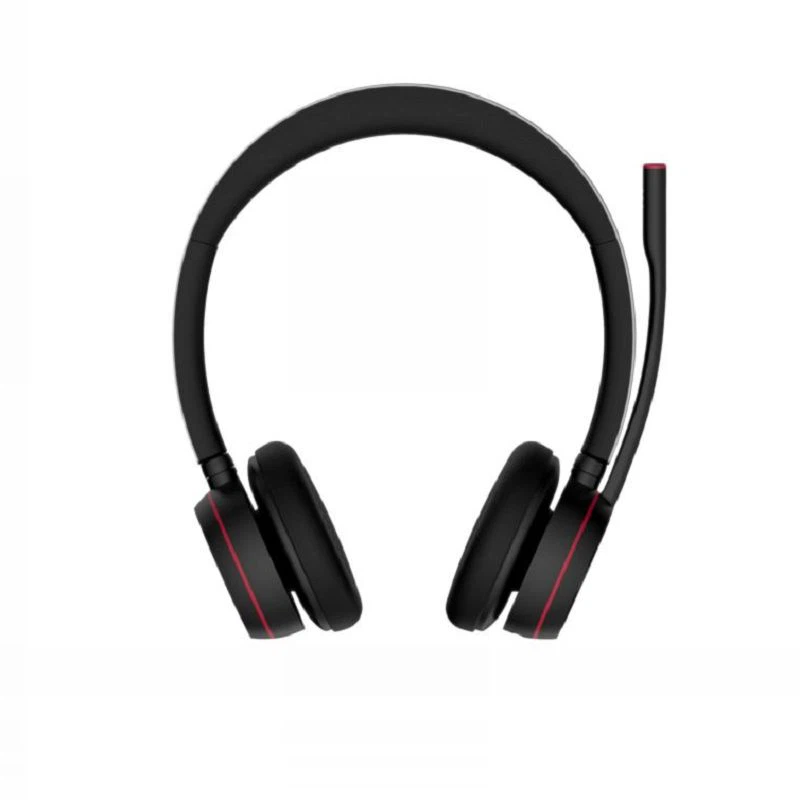
Hey there! As a supplier of wireless office headsets, I often get asked about how to check the battery level of these nifty devices. It's a crucial aspect, especially when you're in the middle of an important call or a long work session. So, let's dive right in and explore the different ways to check the battery level of a wireless office headset.
Checking Battery Level on Different Devices
For Windows Computers
If you're using your wireless office headset with a Windows computer, it's usually a breeze to check the battery level. First, make sure your headset is paired with your PC. Once it's connected, click on the battery icon in the taskbar. You should see a list of connected devices, including your headset. If your headset supports battery level reporting, you'll see a percentage next to its name.
For example, if you're using our Wireless Office Bluetooth Headset, it's designed to communicate its battery status to your Windows PC. This way, you can keep an eye on how much juice is left and plan accordingly.
On Mac Computers
Mac users also have an easy way to check the battery level of their wireless headsets. Click on the Bluetooth icon in the menu bar. You'll see a list of paired devices. Hover over your headset's name, and if it supports battery reporting, you'll see the battery percentage displayed right there. It's super convenient, especially when you're working on a Mac and need to stay on top of your headset's battery life.
Our Call Center Wireless Bluetooth Headset works great with Macs and provides accurate battery level information. This ensures that you're never caught off guard with a dead headset during an important call.
Using Mobile Devices
When using your wireless office headset with a mobile device like an iPhone or Android phone, the process is a bit different. On an iPhone, go to the Control Center by swiping down from the top-right corner of the screen. If your headset is paired, you'll see its battery level right there.
For Android devices, the location of the battery level indicator may vary depending on the phone model and Android version. Usually, you can find it in the Bluetooth settings. Just tap on the paired headset, and you should see the battery percentage.
Our Bluetooth Headset with Dongle is compatible with both iOS and Android devices, making it easy to check the battery level no matter what phone you're using.
Built - in Indicators on the Headset
Some wireless office headsets come with built - in battery indicators. These can be LED lights on the headset itself. For example, a green light might indicate a full or high battery, while a red light could mean the battery is low.
If you're using a headset with a built - in battery indicator, it's a good idea to refer to the user manual. The manual will tell you exactly what each light color means. This way, you can quickly glance at your headset and know if it's time to charge it.
Headset Apps
Many modern wireless office headsets come with dedicated apps. These apps can provide detailed information about the headset, including the battery level. You can download the app from the App Store or Google Play, depending on your device.
Once you've installed the app and paired your headset, you'll be able to see the battery level, along with other useful features like adjusting the sound settings or customizing the headset's behavior. The app gives you more control and a better understanding of your headset's status.
Why It's Important to Check Battery Level
Checking the battery level of your wireless office headset is essential for a few reasons. First, it helps you avoid interruptions during important calls or meetings. You don't want your headset to die in the middle of a critical conversation.
Second, it allows you to plan your charging schedule. By knowing how much battery is left, you can charge your headset at the right time, ensuring that it's always ready when you need it.


Finally, it helps you get the most out of your headset's battery life. By monitoring the battery level, you can make adjustments to your usage patterns to conserve power.
Tips for Extending Battery Life
Once you know how to check the battery level, here are some tips to extend the battery life of your wireless office headset:
- Turn off the headset when you're not using it. This may seem obvious, but it can make a big difference in battery consumption.
- Keep the headset away from extreme temperatures. High or low temperatures can affect the battery's performance and lifespan.
- Update the headset's firmware regularly. Manufacturers often release firmware updates that can improve battery efficiency.
Contact Us for Your Wireless Office Headset Needs
If you're in the market for a high - quality wireless office headset, we've got you covered. Our range of headsets, including the Bluetooth Headset with Dongle, Wireless Office Bluetooth Headset, and Call Center Wireless Bluetooth Headset, offer great battery life and easy - to - check battery levels.
Whether you're a small business owner, a call center manager, or an individual looking for a reliable headset for work, we have the perfect solution for you. If you have any questions or want to discuss your specific needs, don't hesitate to reach out. We're here to help you find the best wireless office headset for your requirements.
References
- General knowledge about wireless headset battery management
- Product manuals of our wireless office headsets