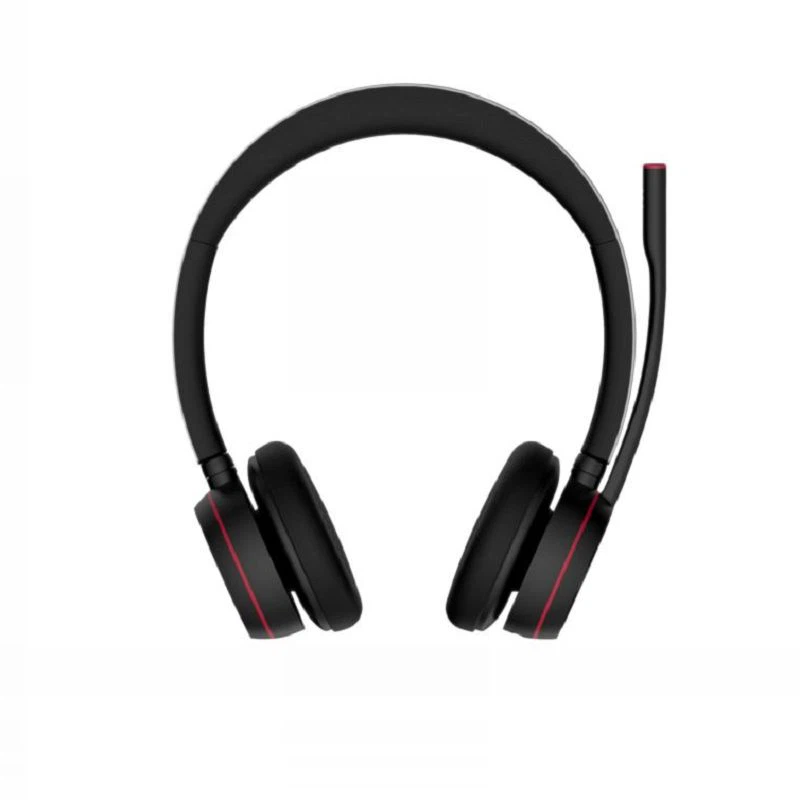
As a supplier of bluetooth dongle headsets, I often receive questions from customers about how to adjust the bass on their devices. In this blog post, I'll share some practical tips and methods to help you get the best bass experience from your bluetooth dongle headset.
Understanding the Basics of Bass in Bluetooth Dongle Headsets
Before we dive into the adjustment process, it's important to understand what bass is and how it affects your audio experience. Bass refers to the low - frequency sounds in audio, typically ranging from 20Hz to 250Hz. These low frequencies add depth, warmth, and impact to music, movies, and other audio content.
Bluetooth dongle headsets are designed to transmit audio wirelessly, and the bass performance can vary depending on the headset's design, the quality of the audio source, and the settings on your device. Some headsets are known for their strong bass output, while others may need some fine - tuning to achieve the desired bass levels.
Adjusting Bass via the Headset's Built - in Controls
Many bluetooth dongle headsets come with built - in controls that allow you to adjust the bass directly on the headset. These controls can vary from simple volume buttons to more advanced equalizer (EQ) settings.
Volume Buttons
Some headsets use the volume buttons to adjust the bass. By pressing the volume up or down buttons in a specific sequence, you can increase or decrease the bass level. For example, on some models, pressing the volume up button twice quickly may boost the bass, while pressing the volume down button twice quickly may reduce it. Check your headset's user manual to find out if this feature is available and how to use it.
Equalizer (EQ) Settings
If your headset has an EQ function, you can use it to fine - tune the bass. The EQ allows you to adjust the levels of different frequency bands, including the bass. Most headsets with EQ settings offer presets such as "Bass Boost," "Rock," or "Pop," which are designed to enhance the bass. You can also create your own custom EQ settings to suit your personal preferences.
To access the EQ settings, you may need to use the headset's companion app. Download the app from the app store, pair your headset with your device, and then look for the EQ section in the app. From there, you can adjust the bass level by moving the slider for the low - frequency band.
Adjusting Bass on Your Device
In addition to the headset's built - in controls, you can also adjust the bass on your device. This is especially useful if your headset doesn't have its own bass adjustment features.
Mobile Devices
On mobile devices such as smartphones and tablets, you can usually find the audio settings in the device's settings menu. Look for the "Sound" or "Audio" section, and then find the "Equalizer" or "Bass Boost" option. Some devices may also have a "Music" or "Media" settings page where you can adjust the audio output.
For example, on an Android device, you can go to "Settings" > "Sound" > "Equalizer" to adjust the bass. On an iPhone, you can go to "Settings" > "Music" > "EQ" and choose a preset or create a custom EQ.
Computers
On computers, you can adjust the bass through the audio settings in the operating system. On Windows, you can right - click on the speaker icon in the taskbar and select "Sounds." Then, go to the "Playback" tab, select your headset, and click "Properties." In the "Enhancements" tab, you can enable the "Bass Boost" option and adjust the level.
On a Mac, you can go to "System Preferences" > "Sound" > "Output" and select your headset. Then, click the "Equalizer" button and choose a preset or create a custom EQ.


Using Third - Party Audio Software
If you want more advanced bass adjustment options, you can use third - party audio software. There are many audio software programs available for both mobile devices and computers that offer a wide range of EQ settings and audio effects.
For example, on a computer, you can use software like Equalizer APO. This free and open - source software allows you to create custom EQ profiles and adjust the bass levels with high precision. You can download the software from its official website and follow the installation instructions.
On mobile devices, apps like PowerAMP and JetAudio offer advanced EQ settings and bass boost features. These apps can be downloaded from the app store and used to enhance the audio output of your bluetooth dongle headset.
Factors Affecting Bass Performance
It's important to note that several factors can affect the bass performance of your bluetooth dongle headset. These include:
- Audio Source Quality: The quality of the audio file or stream you're listening to can have a significant impact on the bass. High - quality audio files with a wide dynamic range will generally have better bass performance than low - quality files.
- Bluetooth Connection: A stable bluetooth connection is essential for good audio quality. If the connection is weak or interrupted, it can affect the bass and overall audio performance. Make sure your device and headset are within range and that there are no obstacles between them.
- Headset Fit: The way the headset fits on your head can also affect the bass. A proper fit ensures that the audio is sealed properly, which can enhance the bass response. Make sure the headset is adjusted correctly and that the ear cups or ear tips fit snugly.
Conclusion
Adjusting the bass on a bluetooth dongle headset can significantly enhance your audio experience. Whether you're a music lover, a gamer, or someone who uses the headset for business calls, getting the right bass level is crucial. By using the headset's built - in controls, adjusting the settings on your device, or using third - party audio software, you can fine - tune the bass to suit your preferences.
If you're in the market for a high - quality Bluetooth Headset with Dongle or a Professional Business Bluetooth UC Headset, we're here to help. Our headsets are designed with the latest technology to provide excellent audio quality, including powerful bass. If you have any questions or would like to discuss your purchasing needs, feel free to reach out to us. We're always happy to assist you in finding the perfect headset for your requirements.
References
- Headset user manuals
- Operating system audio settings documentation
- Third - party audio software documentation