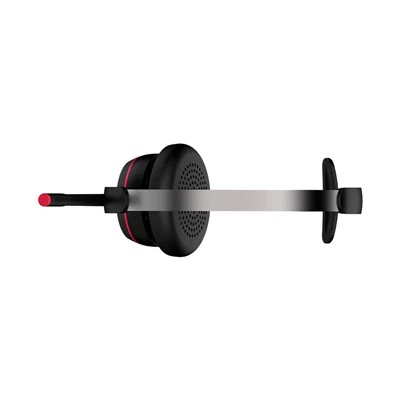
As a supplier of bluetooth dongle headsets, I often receive inquiries from customers about how to check the battery level of these devices. In this blog post, I'll share some common methods to check the battery level of a bluetooth dongle headset, which will help you keep track of your headset's power status and ensure a seamless audio experience.
1. Check via the Connected Device
Most modern smartphones, tablets, and laptops have built - in functionality to display the battery level of connected bluetooth devices.
On Android Devices
When you pair your bluetooth dongle headset with an Android device, follow these steps:
- Open the "Settings" app on your Android device.
- Navigate to the "Connected devices" or "Bluetooth" section.
- Find your bluetooth dongle headset in the list of paired devices.
- Next to the headset name, you should see an icon or a percentage indicating the battery level.
Some Android devices may require you to tap on the headset name in the bluetooth settings to view the battery level. For example, on a Samsung Galaxy device, after pairing the headset, go to "Settings" > "Bluetooth", tap on the connected headset, and you'll see the battery percentage.


On iOS Devices
If you're using an iPhone or iPad, the process is straightforward:
- Make sure your bluetooth dongle headset is paired with your iOS device.
- Swipe down from the top - right corner of your screen to open the Control Center.
- Look for the bluetooth icon. If your headset is connected, the battery level of the headset will be displayed next to the bluetooth icon.
On older iOS versions, you can also go to "Settings" > "Bluetooth", find your headset in the list, and check the battery percentage.
On Windows Devices
For Windows users, here's how you can check the battery level of your bluetooth dongle headset:
- Click on the bluetooth icon in the taskbar.
- Find your bluetooth dongle headset in the list of connected devices.
- If your headset supports battery level reporting, you'll see the battery percentage next to the headset name.
If you don't see the battery level, you can also go to "Settings" > "Devices" > "Bluetooth & other devices", find your headset, and check for the battery information.
2. Use the Headset's Built - in Indicator
Some bluetooth dongle headsets come with their own built - in battery indicators.
LED Indicators
Many headsets use LED lights to indicate the battery status. For example, a green LED may indicate a full or high battery level, while a red LED may signal a low battery.
- A solid green LED often means the battery is fully charged or has a high charge level.
- A blinking green LED might indicate that the battery is charging.
- A solid red LED usually indicates a low battery, and a blinking red LED may mean the battery is critically low.
To check the battery level using the LED indicator, simply turn on your headset. The LED will light up, and you can determine the battery status based on the color and blinking pattern.
Audio Alerts
Some advanced bluetooth dongle headsets are equipped with audio alerts to notify you about the battery level. When the battery is low, the headset will emit a beeping sound or a voice prompt indicating that it's time to charge the device.
3. Third - Party Apps
There are also third - party apps available that can help you monitor the battery level of your bluetooth dongle headset. These apps are often more feature - rich and can provide detailed information about the battery status, such as the remaining battery life in hours or minutes.
To use a third - party app:
- Search for "bluetooth battery monitor" in your device's app store (Google Play for Android or the App Store for iOS).
- Download and install a reputable app.
- Open the app and pair it with your bluetooth dongle headset.
- The app will then display the battery level and other relevant information about your headset.
The Importance of Checking Battery Level
Checking the battery level of your bluetooth dongle headset is crucial for several reasons. Firstly, it helps you avoid unexpected audio interruptions during important calls or while listening to music. If you know the battery is low, you can charge the headset in advance to ensure continuous use.
Secondly, monitoring the battery level can help you assess the overall health of your headset. If the battery is draining much faster than usual, it could be a sign of a problem with the headset or the battery itself.
As a supplier of Bluetooth Headset with Dongle and Professional Business Bluetooth UC Headset, we understand the importance of providing high - quality products and ensuring a great user experience. Our headsets are designed with reliable battery performance and easy - to - check battery indicators.
If you're interested in purchasing our bluetooth dongle headsets, whether for personal use or for your business, we're here to assist you. We offer a wide range of products with different features and price points to meet your specific needs. Contact us to start a procurement discussion, and our sales team will be happy to provide you with more information and help you make the right choice.
References
- Android Help Center: Information on bluetooth settings and device management.
- Apple Support: Guides for using iOS devices and checking bluetooth device battery levels.
- Microsoft Support: Documentation on Windows bluetooth device management.